Overview
Datasets View
Samples view
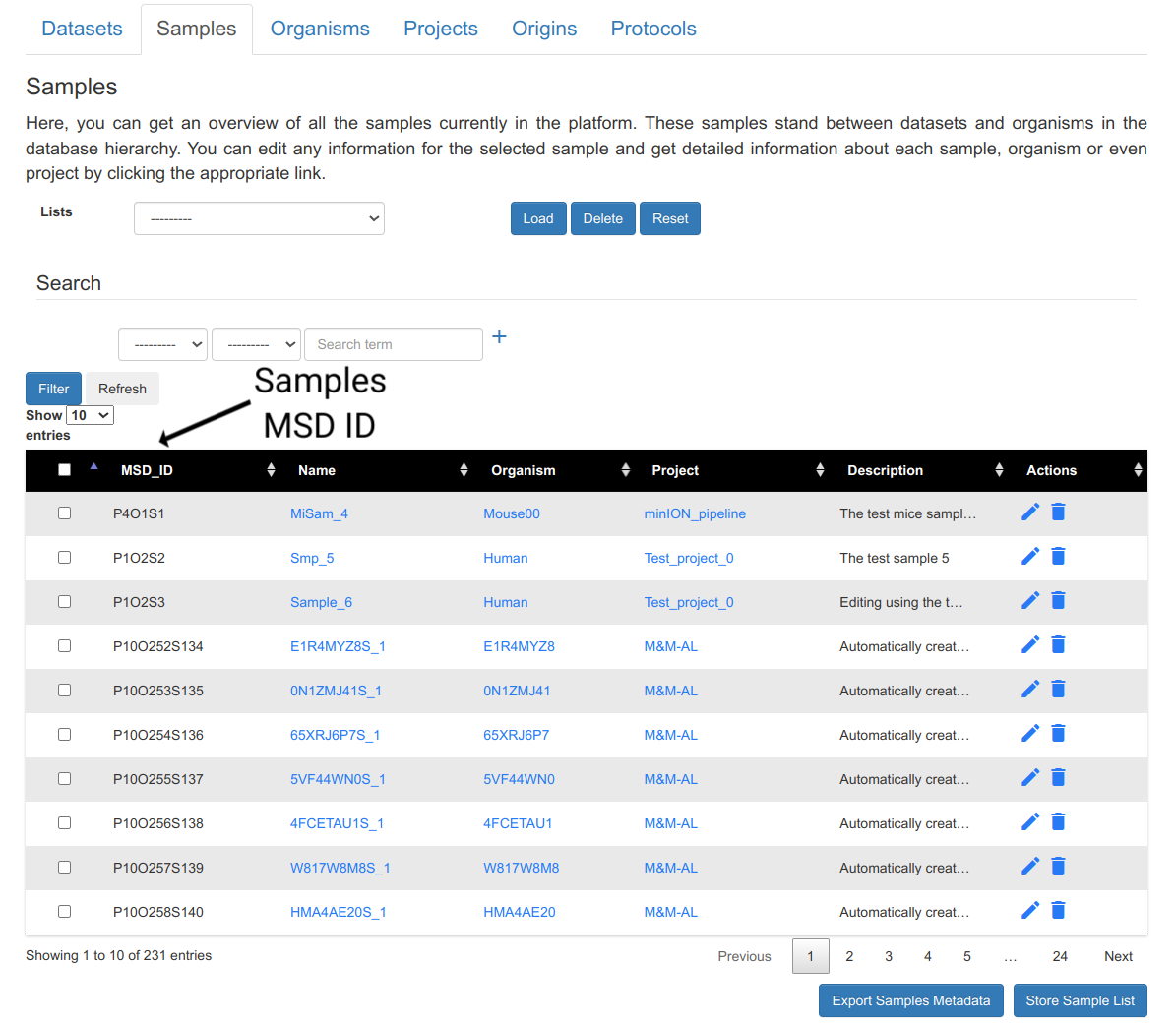
In order to view your submitted samples, log in and go to Overview → Samples. the column named MSD_ID contains samples IDs of each registered sample.
Organisms View
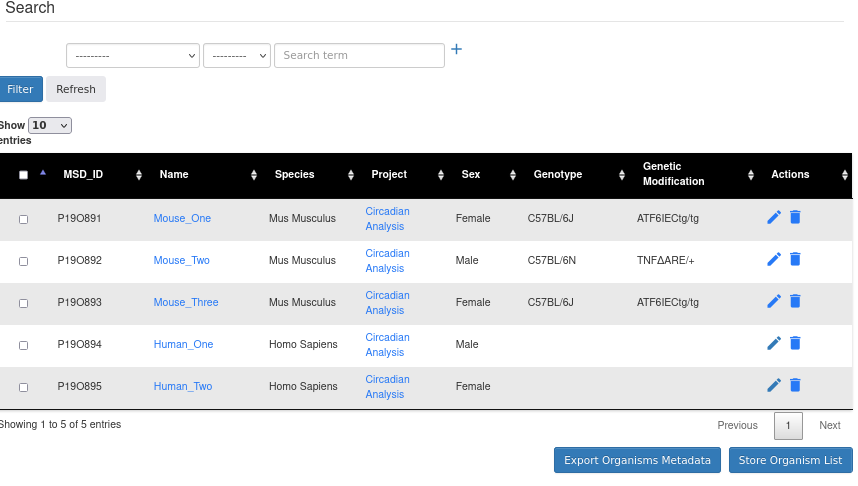
In organism view you can see information about:
MSD_ID: The ID that MSD will give to the organism. The format is like: “__P__[Project Number]__O__[Organism Number]”
Name: The name of the organism.
Species: The scientific name of type of organism
Project: The project this organism belongs to
Sex: The biological sex of the organism
Genotype
Genetic Modification
and you can take these actions:
Edit
Delete
Projects Overview
From the Overview page, you can click on the Projects tab to see the list of projects you are a member of. You can also search for projects using the search bar at the top of the page.
You can navigate and see your own projects and projects to which you have access (Accessible), the projects you have requested access permissions (Requested), and other projects on MSD (Other).
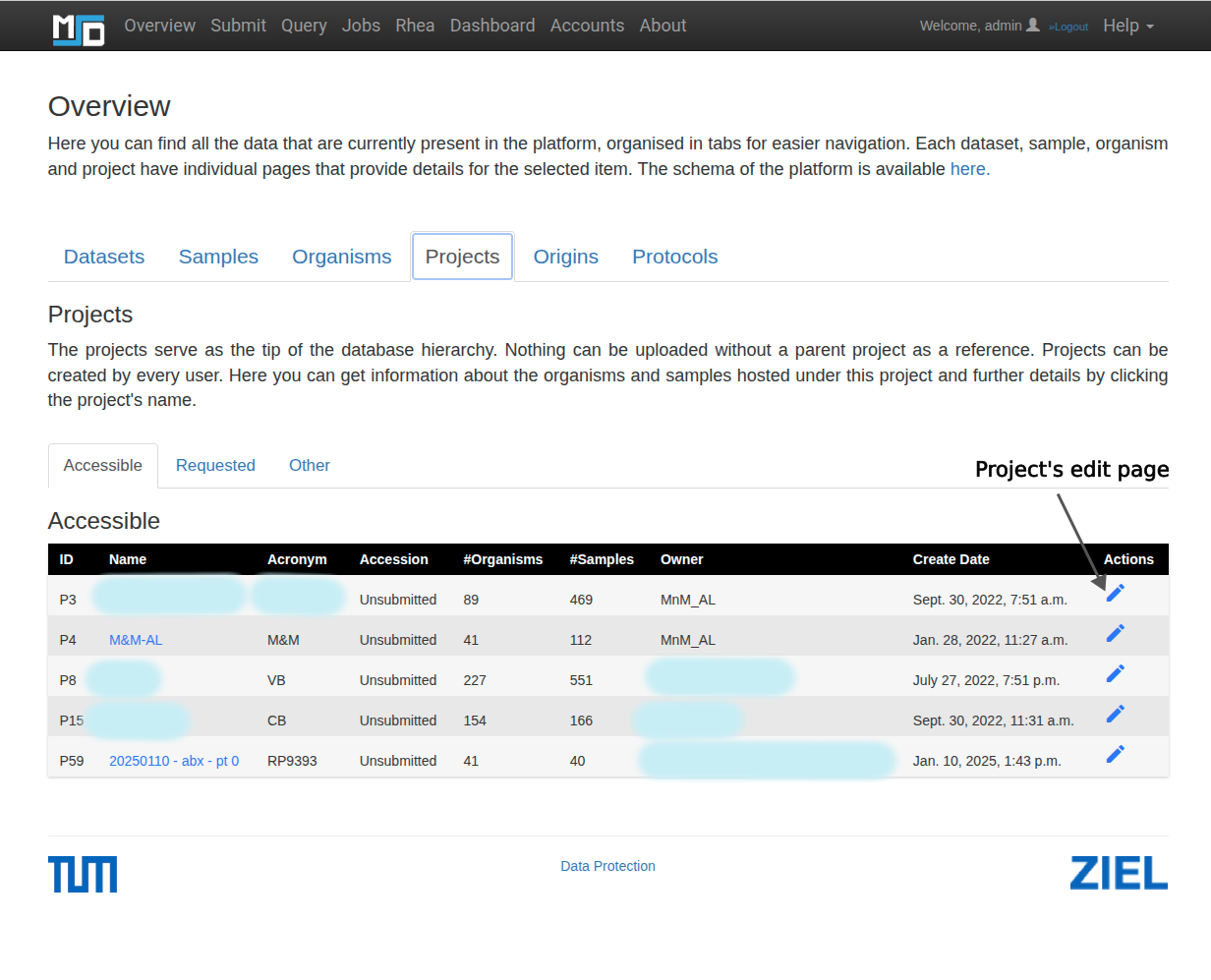
Below you can see an example of the Projects view page with the list of projects and their details such as Project ID, Name, Acronym, Accession, #Organisms, #Samples, Owner, Create Date, and Actions. You can click on the project name to see more details about the project, including its samples, organisms, and datasets.
Columns:
ID: The unique identifier for the project in MSD (It is different from the project ID in CRC1371).
Name: The name of the project.
Acronym: The acronym of the project. This should be the project ID in CRC1371.
Accession: The accession number of the project if it’s registered in the European Nucleotide Archive (ENA) or Sequencing Read Archive (SRA).
#Organisms: The number of organisms associated with the project.
#Samples: The number of samples associated with the project.
Owner: The owner of the project.
Create Date: The date when the project was created in MSD.
Actions: The actions you can perform on the project, such as viewing details of project.
Important
Click on the edit pencil icon to edit the project details. You can edit the project name, acronym, description, and other details. Refer to the Edit Project Details page for more information on how to edit project details.
Projects Detail View
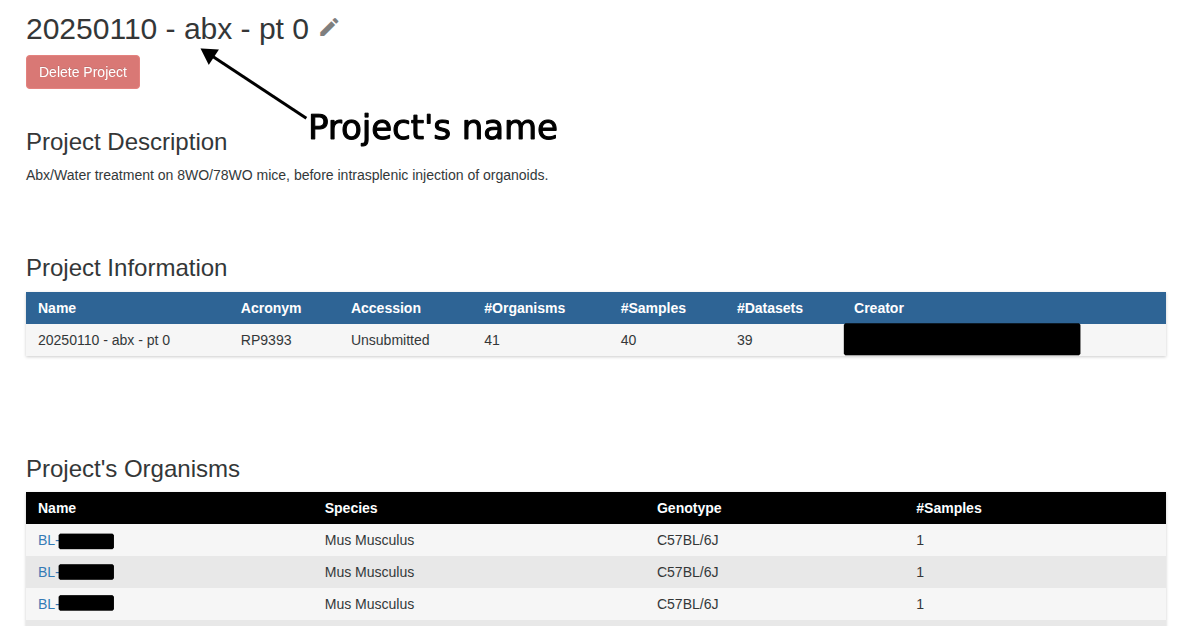
In this page you see the details of the project, including its samples, organisms, and datasets. You can also see the project description.
Origin View
MSD has an origin explorer to help finding the origin of the samples and their MSD ID. This ID is called ORID and contains information about origin of the samples at three levels: Organ, Localization, and Material. You can find the ORID of ther sample origin by going to Overview tab -> Origins sub-tab. Searching keywords belonging to one of the aforementioned levels will output a list of origins with their corresponding ORID from which you can choose the origin which describes your sample’s origin the best.
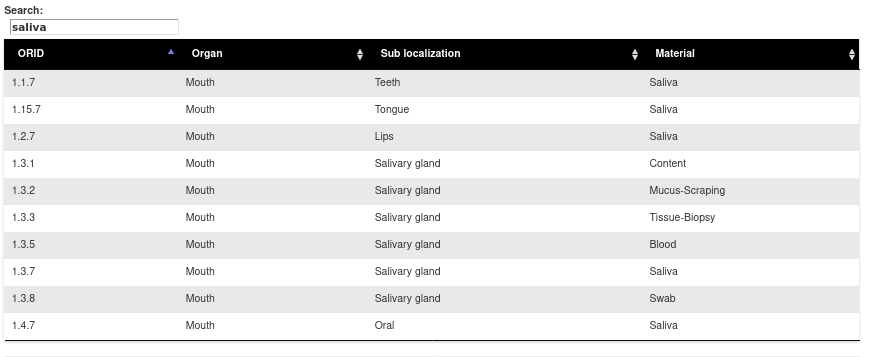
An example of a search for ORIDs of samples originated from “Saliva”
Protocols View
Will be added soon!